PP-OCRv5 · On-device text extraction
Free image to text, with your images kept private
Turn a screenshot, receipt, sign, or document photo into selectable text. OCR runs on your device. Your image is not uploaded to a processing server.
Extract text from an imageThree steps from image to text
Step 1
Choose an image
Open OCR and select a clear screenshot, receipt, or printed document image.
Step 2
Extract text locally
Approve the first model download, then let your browser process the image.
Step 3
Use the result
Copy the text, download a .txt file, or choose Ask in Chat to attach it to a new conversation.
A real extraction example
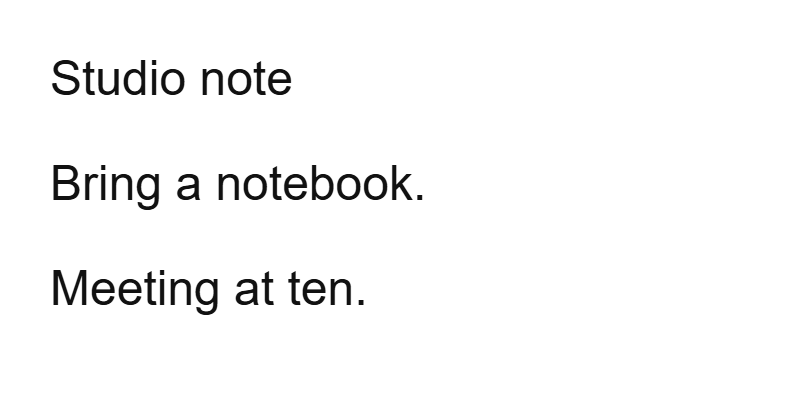
This synthetic note contains no personal data. The text alongside it was extracted with the same OCR engine used in the studio.
Inputs, downloads, and limitations
Use browser-readable image files such as PNG, JPEG, and WebP. Results are plain text; this tool does not preserve a document’s page layout or export searchable PDFs. Screenshot or export a PDF page as an image before using OCR.
The PP-OCRv5 mobile model files total approximately 21.3 MB, plus runtime assets. Approve the download on first use. The engine uses the CPU through WebAssembly; a modern desktop browser is recommended for larger images.
Clear printed text works best. Blur, handwriting, unusual fonts, small letters, and complex layouts can produce mistakes. Review extracted numbers and names against the original. Cached assets may support later offline use; prepare and test the tool before disconnecting.
Also try the free image upscaler or read text aloud.